During installation, the Flight Panels installer obtains the community folder path from the Microsoft Flight Simulator UserConfig.opt file, so that it can extract third party modules for FSUIPC7 and Mobiflight. The 'Path cannot be traversed because it contains an untrusted mount point' error message occurs when this folder is being redirected to another location via a symbolic link, such as a separate drive, OneDrive or an untrusted custom mount point.
This protection is in place to prevent privilege escalation, which could potentially allow an unprivileged user to gain full control over the system.
To resolve this issue, move your community folder back to the default location. Alternatively, update the community folder path to point to the correct destination, bypassing the need for redirection.
Before making any changes to your community folder, please ensure that you've taken a full backup should you encounter any issues that may require a restoration.In future product updates (released after February 18th 2026), this feature will be disabled by default to negate the issue, leaving the security decision to Windows.
Default Community Folder Locations
Microsoft Store
C:\Users\YourUsername\AppData\Local\Packages\Microsoft.FlightSimulator_8wekyb3d8bbwe\LocalCache\Packages\Community
Steam Edition
C:\Users\YourUsername\AppData\Roaming\Microsoft Flight Simulator\Packages\Community
Changing Community Folder Location
To change the location of your community folder, follow these steps.
- Launch Microsoft Flight Simulator 2024
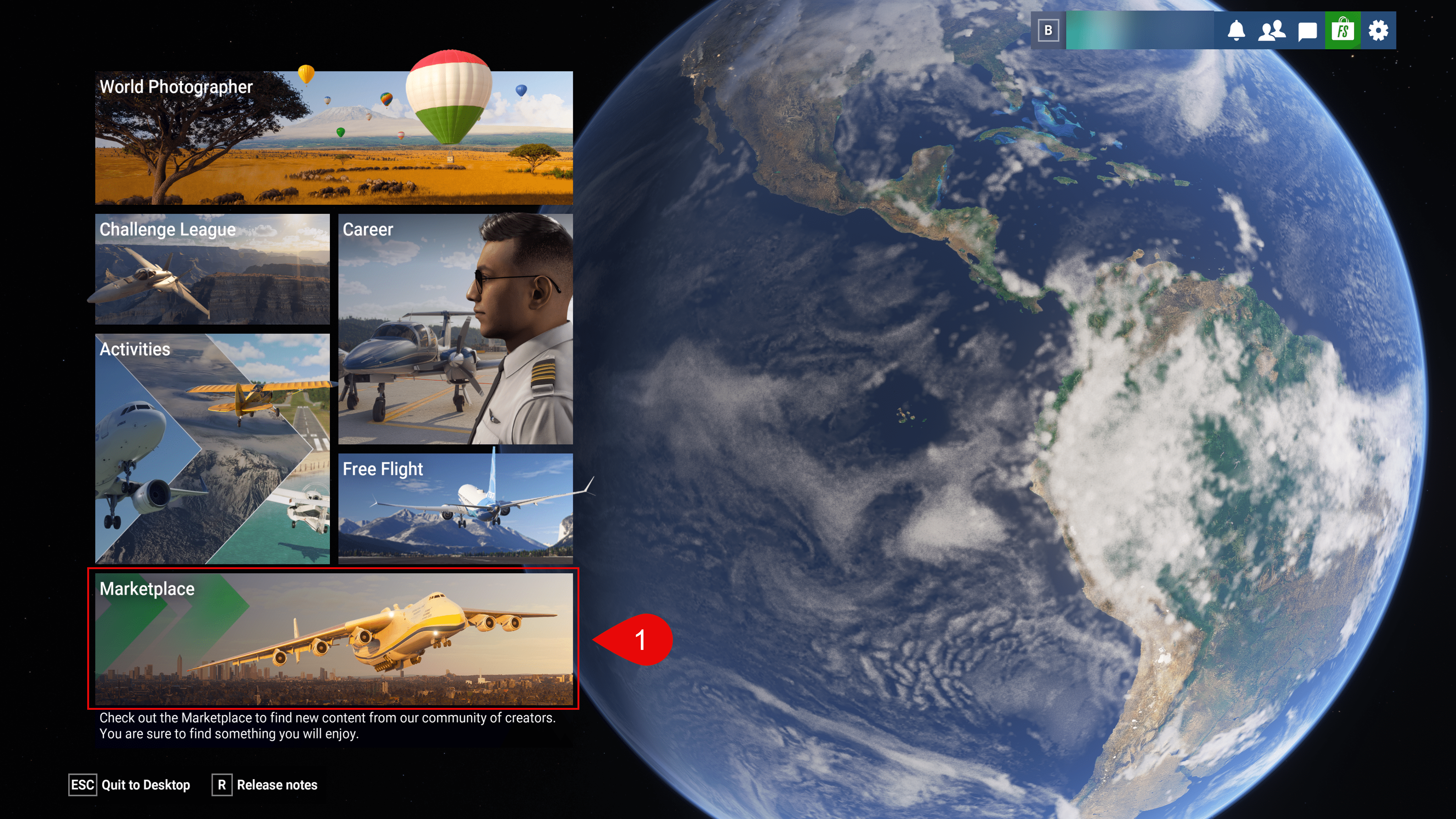
- Select the 'Marketplace' from the home screen
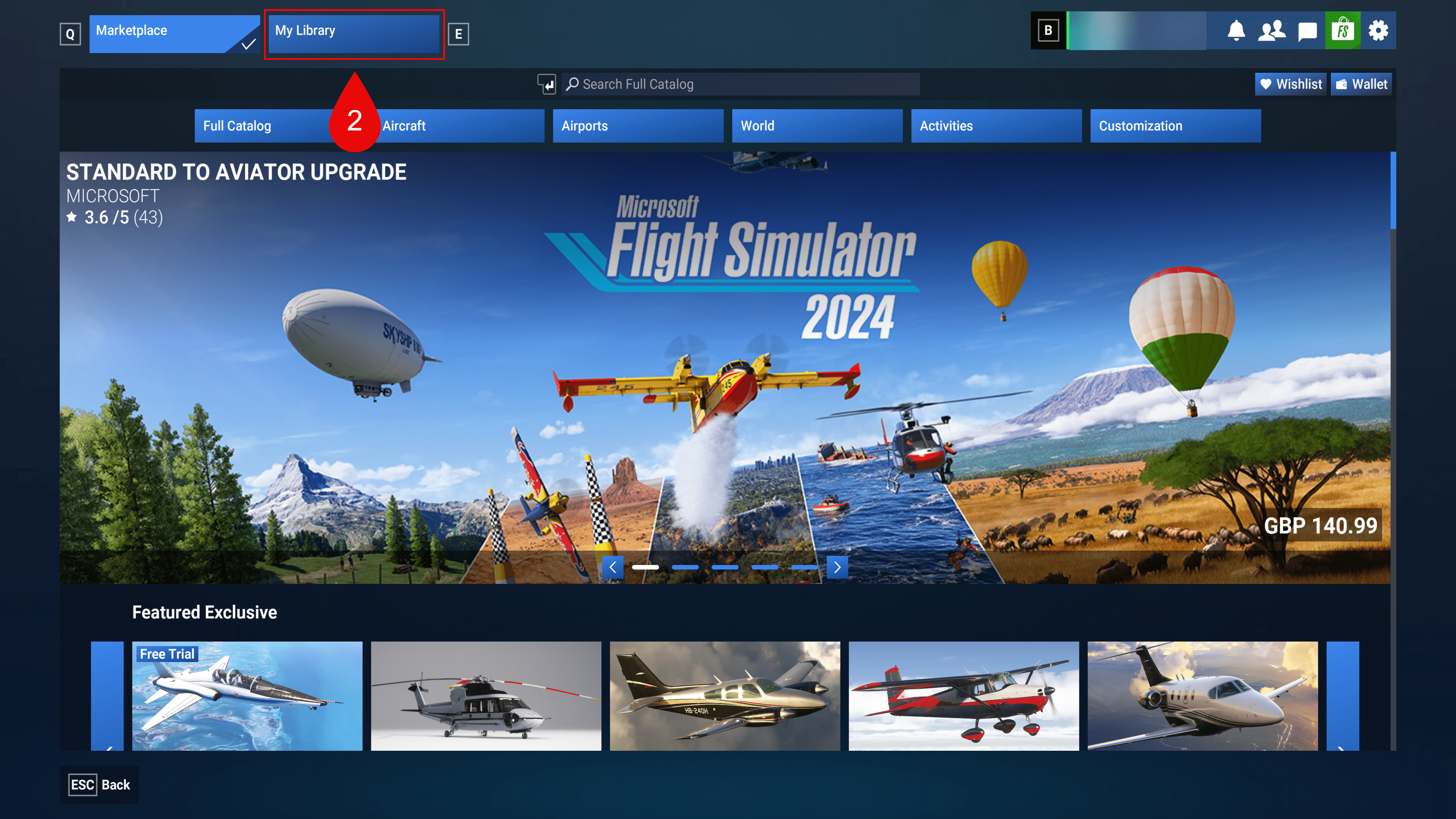
- Select the 'My Library' tab at the top of the screen
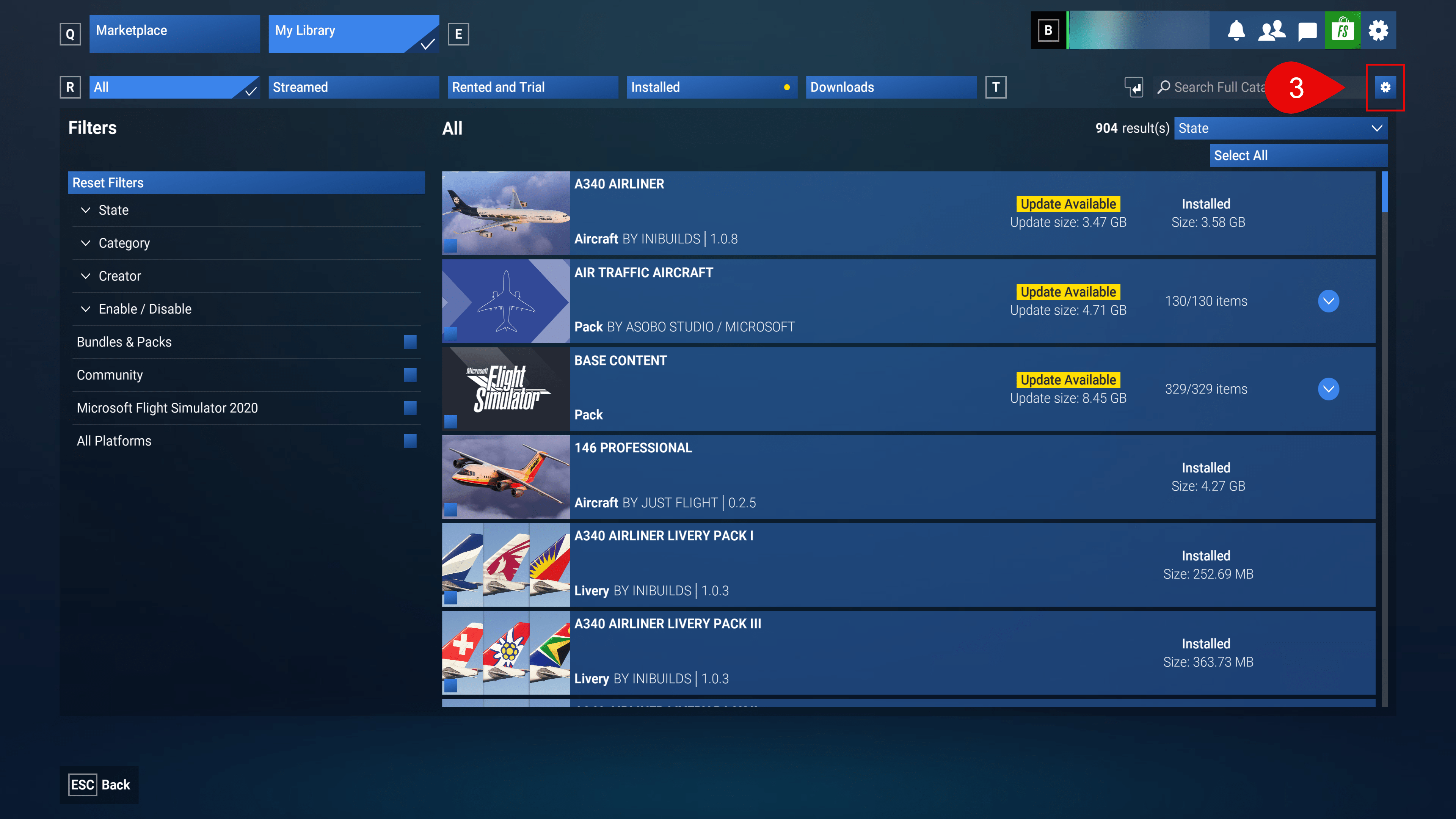
- Select the Cog Icon, beside the search bar
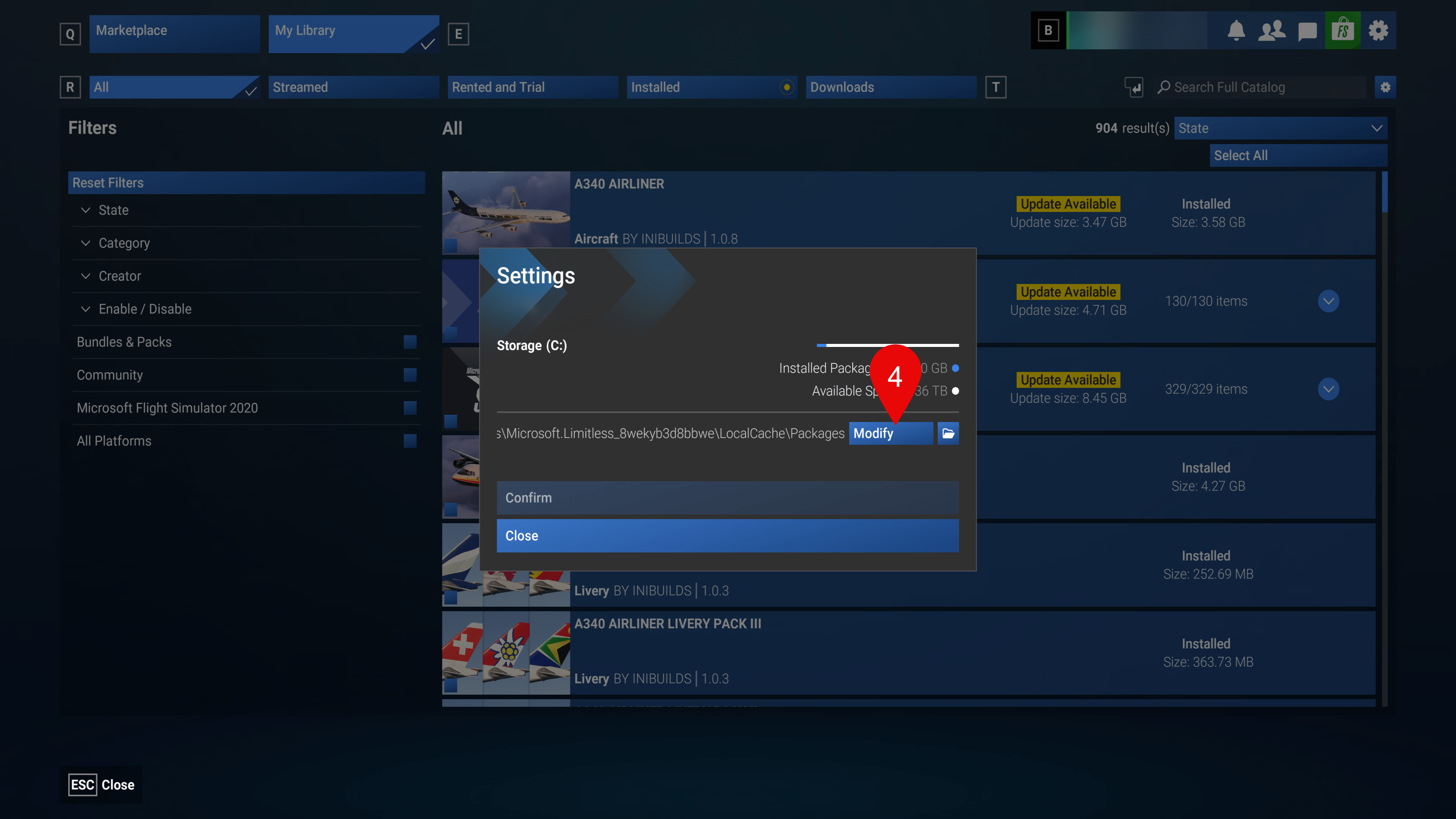
- Select 'Modify' and browse to the new location
- Press the 'Select Folder' button
- Press the 'Confirm' button
Was this article helpful?
That’s Great!
Thank you for your feedback
Sorry! We couldn't be helpful
Thank you for your feedback
Feedback sent
We appreciate your effort and will try to fix the article